How do you automatically cut rallies from a badminton video?
Record one badminton court, import the match into Spherely on iPhone or Android, and review the AI-suggested rallies before exporting.
SPHERELY TABLE TENNIS GUIDE
In Spherely on iPhone or Android, choose Table Tennis in AI editing and import a continuous match recording. Preview the suggested rallies against the original, then export the points you want to keep.
Spherely editorial team · Reviewed
Start with a raised, fixed phone just outside the playing area. Keep both ends of the table, the net, and enough space for both players in the frame. A slight angle helps you see past the nearer player when the far player receives.
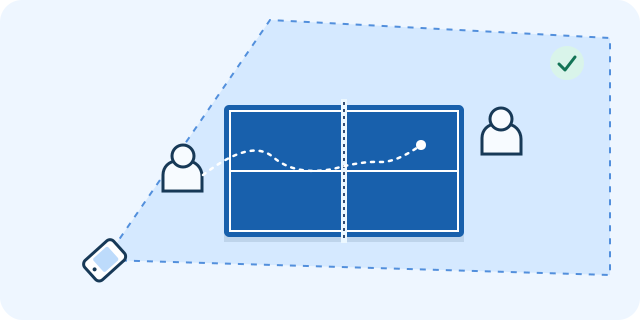
Use a single stretch of footage with a short point, a longer rally and a pause between them. Choose Table Tennis in AI editing and follow the import and processing prompts in your version of the app.
For a serve-and-receive review, start with one point where your return worked and one where you lost the initiative. Keep both serves and the first few shots, and compare your starting position and where the first return landed.
Use the App Store for iPhone or the Android page to choose Google Play or an APK for your region. The download hub lists all device options. Check the current app for feature availability and usage limits.
Preview a short point and a longer rally. Check the serve and the end of each, then export the clips you want to review.
COMMON QUESTIONS
Yes. Start with a continuous stretch where both players, both halves of the table and the point boundaries are visible.
Move the camera toward one side or raise it slightly. Film another short serve and return to check the view before the game.
Use the Spherely mobile app to import and edit. This guide explains how to film and check your clips.
The camera positions and review drills are Spherely editorial examples. App details checked

Get the app, import a table tennis video and save the points you want to watch again.
Available for iPhone and Android