How do you automatically cut rallies from a tennis match video?
Import a tennis recording on iPhone or Android, let Spherely find the rallies, and review the cuts before saving a highlight reel.
SPHERELY TENNIS GUIDE
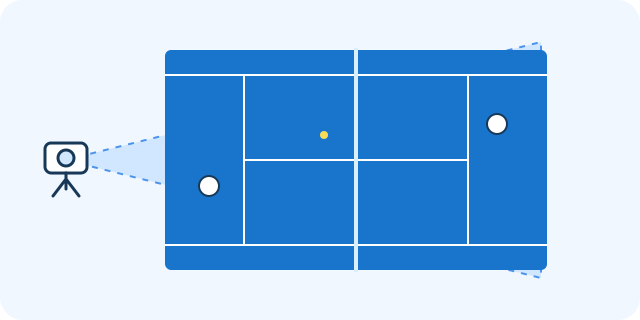
For automatic rally editing, use a stable wide shot that keeps play and both players in view. For AI stroke analysis, record one player's full body, racket, and complete swing from a clear side or diagonal view. Watch a short test before recording the full session.
Start with a fixed phone behind the centre of the baseline, slightly raised if possible. In doubles, check that all four players and the relevant court area remain visible as they move.
Choose one player and one stroke. A side or diagonal view often shows the footwork, body turn, and swing more clearly. Follow any recording guidance shown for the specific analysis in the app.
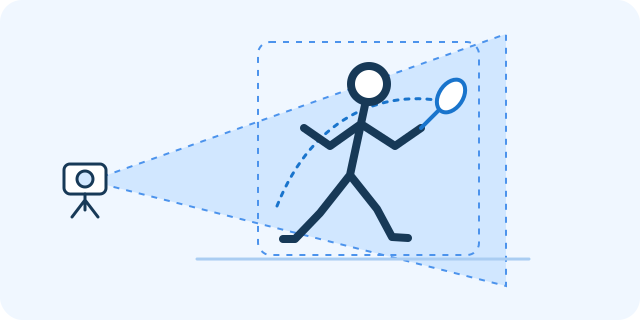
Watch a short test on the phone. For rally editing, check the players at the far end of the court. For a stroke clip, pause at the start, contact, and follow-through to check that the feet, torso, and racket stay in frame.
Import the continuous match video into automatic editing to find rallies. Use a focused stroke clip in AI Coach for technique feedback, then choose one practice focus and record it again. Framing and lighting affect the result, and a coach can help interpret feedback in context.
Use the App Store for iPhone or the Android page to choose Google Play or an APK for your region. The download hub lists all device options. Check the current app for feature availability and usage limits.
Pick one task first. Start with a few rallies for editing or a few repetitions of one stroke for feedback.
COMMON QUESTIONS
Use the wide view to find points. Record a separate full-body view when you need detailed feedback on one player's stroke.
A phone and a stable mount are enough to try these setups. Check the test clip for visibility and shake.
Start from the side or diagonally to the side. Check that your feet, toss, racket at full reach, and follow-through fit in the shot.
Yes, if the footage is clear and suitable for the intended task. Check the import requirements in the app.
Choose one suggestion to work on, film another repetition, and review the difference. Use the feedback as a starting point for practice or a conversation with a coach.

Import your match for editing or bring a focused stroke clip to AI Coach.
Available for iPhone and Android