How do you automatically cut rallies from a tennis match video?
Import a tennis recording on iPhone or Android, let Spherely find the rallies, and review the cuts before saving a highlight reel.
TENNIS APP COMPARISON
SwingVision has yet to release its full Android app, according to its published platform update. You can record on Android and import the footage into SwingVision on a supported Apple device. If you want to edit tennis rallies or analyze an individual stroke on your Android phone, Spherely offers both workflows.
Published by Spherely, maker of the Spherely app. Platform details checked
Get Spherely for Android| Your goal | SwingVision | Spherely on Android |
|---|---|---|
| Use an Android phone | Android can record footage for import or act as a browser remote for a recording on another device. | Install on Android to import a match or submit a stroke video. |
| Make a rally reel | Import footage on a compatible Apple device to find highlights and review points. | Find candidate rallies in the app, preview the cuts, and export the selection. |
| Review match data | The App Store listing describes automated scoring, shot statistics, and line calls for supported setups. | This guide covers editing selected points and reviewing your own technique clips. |
| Practice one stroke | The listing describes coaching feedback after a session. | Import a focused stroke clip for movement feedback and a practice focus. |
You can film a match on Android, transfer the original file to a supported iPad or Mac, then follow SwingVision’s import guide. A browser remote on Android can control a compatible recording setup from a second device. Video processing still takes place through the SwingVision app.
For a first test, use one short stretch of continuous play from behind the baseline. Check that the video shows the court and the players through the serve, exchange, and finish.
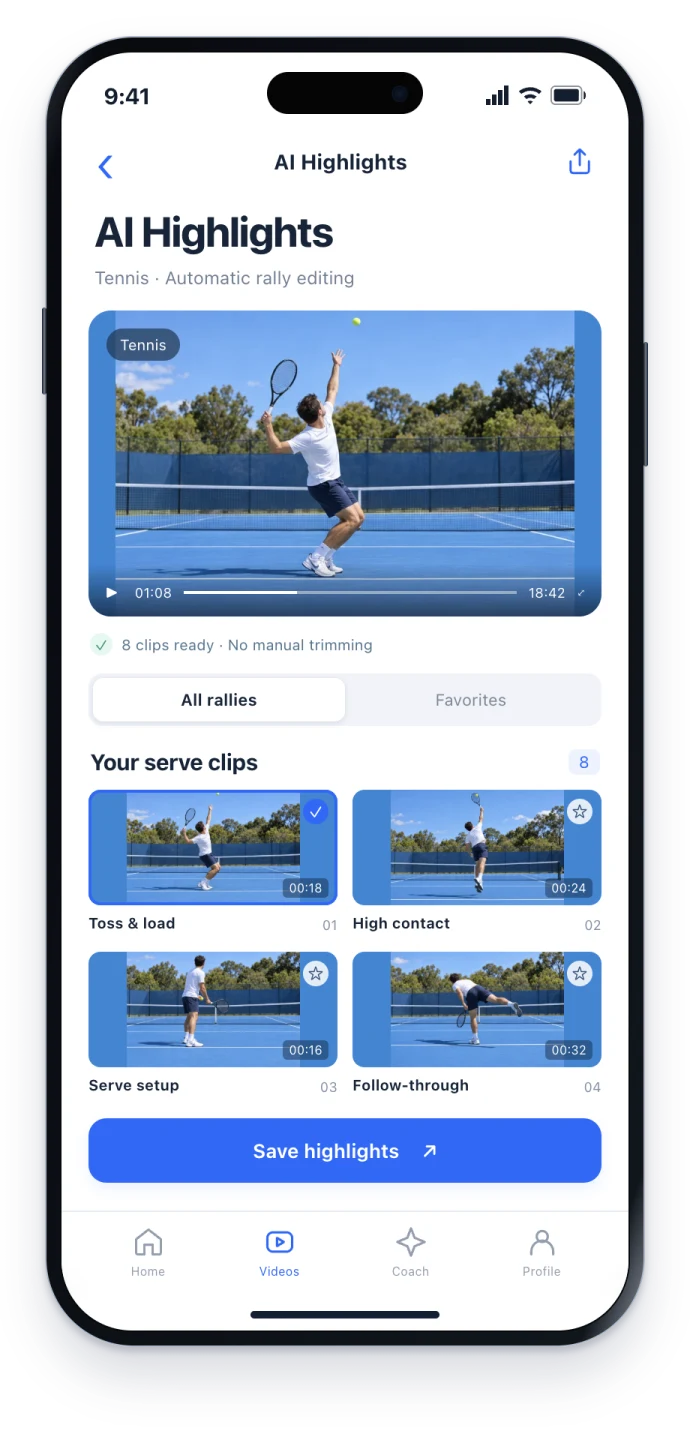
Film a separate short clip from the side or diagonally, keeping one player’s feet, body, and racket in view throughout the stroke. Import it in AI Coach to review the movement and pick a practice focus.
Use the App Store for iPhone or the Android page to choose Google Play or an APK for your region. The download hub lists all device options. Check the current app for feature availability and usage limits.
Get Spherely, import one short sample, and check that the suggested clips include the points you want.
COMMON QUESTIONS
Yes. SwingVision describes importing an Android recording into its compatible Apple app. Follow its guidance for the recording and device.
It controls a recording on another compatible device. Its official instructions describe scanning a QR code and using the secondary phone’s browser.
Yes. Use a continuous match video for automatic rally editing and a separate short stroke clip for AI Coach. Check the current requirements in the app.
Check SwingVision’s official description and the requirements for your Apple setup. Choose Spherely’s Android workflow when the priority is selecting rallies or reviewing a particular stroke.
We compared the developers’ platform guidance and store listings. You can try the five-point editing workflow with your own footage. Features and requirements can change by platform and app version.

Get Spherely from Google Play or choose the official APK for your region.
Available for iPhone and Android